
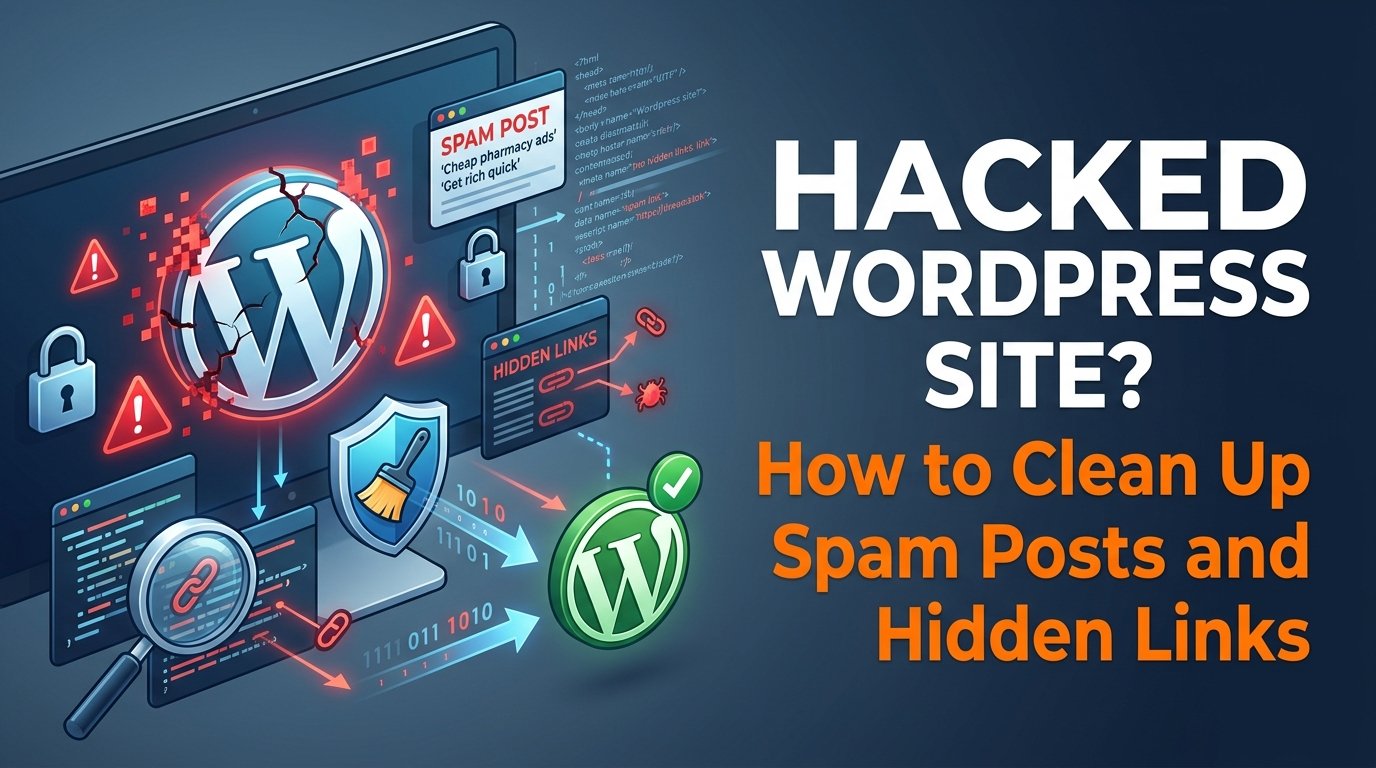
Finding spam posts you never wrote, or discovering hidden links in your pages, is stressful. It also hurts your visitors and your search visibility. This guide explains how a typical WordPress cleanup works, from spotting the problem to getting Google to trust your site again. Use it as a map, and ask your host or a security professional for help if you are not comfortable with any step.
In short: contain the problem, find every spam item and backdoor, change all credentials, clean the database and files, and then tell Google the site is clean.
🎓 Want to manage and secure your own WordPress sites? Explore the web design courses at Tech Pulse.
How spam hacks usually look
- Hundreds of new posts or pages about unrelated products, gambling or pills
- Strange URLs showing up in Google results for your domain
- Hidden links added to your theme footer, widgets or old posts
- New administrator accounts you did not create
- Unknown files in the uploads folder or in the main folder of your site
- Redirects that only happen for visitors coming from search engines
Step 1: Contain the damage
- Take a full backup of the hacked site first. You may need it for investigation.
- Tell your hosting provider. Many hosts can scan the account or restore an older clean copy.
- Consider putting the site in maintenance mode while you work.
Step 2: Change every credential
Change passwords for WordPress admin accounts, hosting, the database, FTP or SSH, and the email linked to the site. If you cannot log in, ask your host to help reset access. Also regenerate the WordPress security keys in the configuration file.
Step 3: Remove unknown users
Open the Users screen and look for administrators you do not recognize. Remove them after checking they have no content you need. Review the roles of all other users.
Step 4: Find and remove spam posts and pages
- Check the Posts and Pages lists, including drafts, scheduled and private items.
- Sort by date and look for bursts of new posts.
- Check custom post types added by themes or plugins, such as products or portfolios.
- Delete spam items, then empty the trash.
Search the database with a tool like phpMyAdmin carefully, and always back up the database before making changes.
Step 5: Find hidden links and injected code
- Check theme files like the footer and header for unfamiliar code.
- Check text widgets and menus for links you did not add.
- Look through old posts and pages, especially in the source view.
- A security plugin’s malware scan can highlight modified files.
When in doubt, compare your theme and plugin files with fresh copies from the official source and replace the modified ones.
Step 6: Reinstall WordPress core, plugins and themes
Download clean copies of the WordPress core, your active plugins and your theme from their official sources, and replace the existing files. Do not overwrite your content or configuration file. Delete plugins and themes you no longer use, and never keep pirated or nulled versions.
Step 7: Look for backdoors
Attackers often leave hidden files so they can come back. Check for:
- PHP files inside the uploads folder, where PHP files normally do not belong
- Recently modified files in the core folders
- Unknown scheduled tasks and unfamiliar plugin folders
- Strange code that uses functions to decode or run hidden text
This step is hard for beginners. If you are unsure, ask your host or hire a professional.
Step 8: Harden the site
Install a reputable security plugin, enable two-factor authentication, limit login attempts, and keep everything updated. Our guide on protecting your WordPress site lists 12 practical steps.
Step 9: Clean up your sitemap and search results
- Check that your sitemap lists only real pages and posts.
- Use Google Search Console’s Security Issues report to see whether Google has flagged your site.
- Use the Removals tool for spam URLs that are still in Google results, and make sure deleted spam pages return a 404 or 410 status.
- If Google shows a security warning, request a review after the cleanup is complete.
Step 10: Monitor afterwards
Keep watching for weeks after cleanup. Set email alerts for new users and file changes, review Search Console weekly, and keep automatic backups running.
Cleanup checklist
✅ Tick as you go
- Backup of the hacked site saved
- Host informed
- All passwords and security keys changed
- Unknown admin users removed
- Spam posts and pages deleted, trash emptied
- Hidden links removed from theme, widgets and content
- Core, plugins and theme reinstalled from official sources
- Backdoor files checked
- Security plugin and 2FA enabled
- Sitemap checked, Search Console reviewed
- Monitoring and backups running
Common mistakes during cleanup
- Deleting spam posts but leaving the backdoor, so the spam returns
- Changing only the WordPress password and not hosting, database or FTP
- Restoring an old backup that is already infected
- Installing many security plugins that conflict with each other
- Forgetting to check custom post types and the sitemap
Frequently asked questions
Can I clean a hacked site without a professional?
For simple cases with a good clean backup, yes. For repeated infections or if you cannot find the backdoor, professional help is safer.
How long until Google trusts my site again?
It varies. If Google issued a warning, a review request after a full cleanup can take days to weeks. Spam URLs may take longer to disappear from results.
Will a hack hurt my SEO and ads approval?
It can. Spam content and hidden links reduce the quality of your site. Cleaning thoroughly and publishing useful original content helps recovery.
Should I rebuild the site from scratch?
Sometimes a fresh install with a clean export of your content is the most reliable option, especially when the infection is deep.
Questions to ask your host right away
When you contact your hosting provider about a hacked site, clear questions save time. Ask whether they can scan the account for malware, whether a clean backup from before the date of the hack exists, and whether server logs are available to show how the attacker got in. Also ask if they can reset the database and FTP credentials, and whether any suspicious files were found outside your WordPress folder.
How long does a cleanup take?
A small site with a clean backup can be restored in a few hours. A deep infection with backdoors, spam posts and database changes can take days of careful checking, and monitoring continues for weeks. Do not rush the last steps: a site that looks clean but still has one hidden file can be reinfected within days.
Related reading
🚀 Build your skills to run secure websites. See the Tech Pulse courses and start learning step by step.
About the author: Reza is a Dhaka-based freelance graphic and web designer. He teaches design and online skills at Tech Pulse.