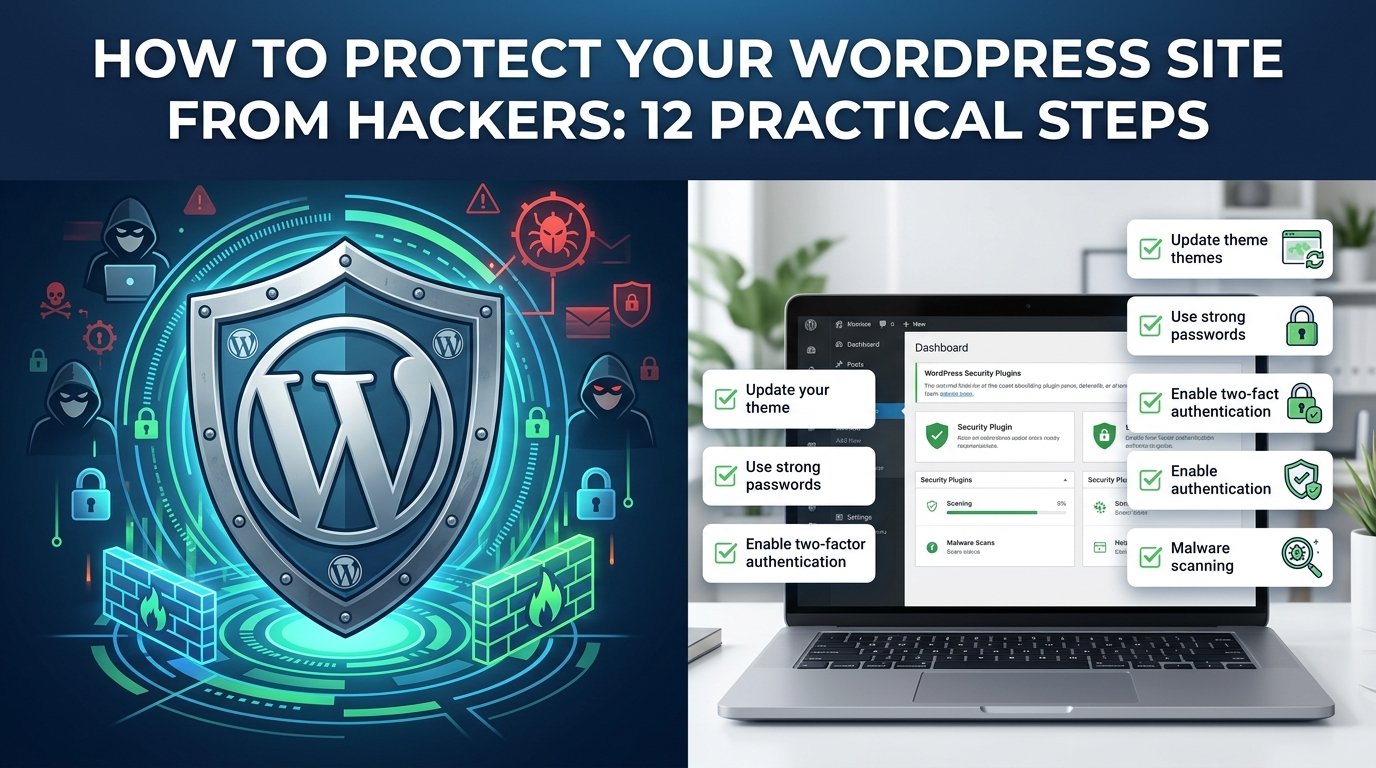
Most hacked WordPress sites are not targeted personally. Automated bots scan the internet for old plugins, weak passwords and unprotected logins. The good news is that a few simple habits stop most of these attacks. This checklist gives you 12 practical steps you can complete in an afternoon.
In short: keep everything updated, use strong and unique logins with two-factor authentication, install a firewall, take regular backups, and remove what you do not use.
🎓 Want to build and manage your own WordPress site with confidence? See our web design courses at Tech Pulse.
1. Keep WordPress, themes and plugins updated
Outdated plugins and themes are the most common way sites get hacked. Update the WordPress core, all plugins and your theme regularly. Test big updates on a backup or staging copy first if your site is important.
2. Delete plugins and themes you do not use
Deactivated plugins can still be attacked. Remove anything you do not use. Keep only one default theme as a backup, plus your active theme.
3. Download from trusted sources only
Install plugins and themes from the official WordPress directory or the developer’s own website. Never use “nulled” or pirated premium themes and plugins, because they often contain hidden malicious code.
4. Use strong, unique passwords
Use a long passphrase or a random password for WordPress, hosting, email and your database. Never reuse a password across accounts. A password manager makes this easy.
5. Turn on two-factor authentication
Two-factor authentication (2FA) asks for a code from your phone after your password. Many security plugins and hosting panels support it. Turn it on for all admin and editor accounts.
6. Do not use “admin” as a username
Attackers try “admin” first. Create an administrator account with a different username, then remove the old one. Make sure public display names do not show your login username.
7. Limit login attempts and protect the login page
Use a security plugin that limits failed logins and blocks suspicious IP addresses. You can also add a CAPTCHA to the login and registration forms.
8. Install a firewall and malware scanner
A security plugin with a web application firewall and scheduled malware scans can block many attacks and alert you early. Choose one reputable plugin and configure it, rather than installing several that overlap.
9. Take automatic backups and test them
A backup is your safety net. Back up both files and the database, store a copy away from your hosting account, and test a restore from time to time. Daily backups are best for active sites, weekly for slow-changing ones.
10. Use HTTPS and a secure hosting account
Install an SSL certificate so your site loads over HTTPS. Pick a hosting provider that offers security features, regular server updates and easy backups. Protect your hosting panel and FTP accounts with strong passwords too.
11. Review users and file permissions
Give each person only the role they need. Remove old users. Ask your host or developer to check that file permissions are correct, and turn off the built-in file editor in the dashboard if you do not need it.
12. Monitor your site
Check your site often for unfamiliar posts, new admin users, strange redirects or unexpected pop-ups. Use Google Search Console, which can alert you to security problems. Set up email alerts from your security plugin.
Security checklist
✅ Tick what you have done
- WordPress, plugins and theme are updated
- Unused plugins and themes deleted
- No pirated or nulled themes or plugins
- Strong, unique passwords everywhere
- Two-factor authentication enabled
- No “admin” username
- Login attempts limited
- Firewall and malware scan active
- Automatic backups stored off the server
- HTTPS enabled
- Old users removed, roles reviewed
- Alerts and Search Console set up
Signs your site may be hacked
- Pages or posts you did not write, often about unrelated products
- Visitors redirected to strange websites
- New admin users you do not recognize
- Warnings from Google or your browser about a dangerous site
- Sudden drop in traffic or a slow site
- Your hosting provider suspends the account
What to do if your site is hacked
- Stay calm and take a full backup of the current state for investigation.
- Contact your hosting provider. Many can help or restore a clean copy.
- Change all passwords: WordPress, hosting, database, FTP and email.
- Remove unknown admin users and run a full malware scan.
- Update everything and delete unused or suspicious plugins and themes.
- Restore from a clean backup if possible, and check Search Console for security issues.
- If the cleanup is complex, hire a professional so the backdoors are fully removed.
Frequently asked questions
Is WordPress itself unsafe?
The WordPress core is actively maintained. Most problems come from outdated plugins, weak passwords and pirated themes, which you can control.
Do small websites get hacked?
Yes. Most attacks are automated and do not choose targets by size. Small sites are attacked because they are often less protected.
Is a free security plugin enough?
For many small sites, a reputable free plugin plus updates, strong logins, 2FA and backups is a solid base. Higher-risk sites like online shops may need extra protection.
How often should I update?
Check at least weekly, and apply security updates as soon as they are available.
A 30-minute weekly security routine
Security works best as a habit, not a one-time project. Pick a fixed day each week and spend about half an hour on this routine:
- Open the Updates screen and apply pending updates for the core, plugins and theme.
- Check the Users list for any account you do not recognize.
- Read the latest report from your security plugin and look at blocked login attempts.
- Confirm that the last automatic backup finished, and download a copy if you keep one offline.
- Open your homepage in a private window to check for unexpected redirects or pop-ups.
Once a month, test restoring a backup on a staging copy or ask your host how restoration works. A backup you have never tested is only a hope. If you manage client sites, send each client a short monthly note listing what you checked; it shows your value and builds trust.
Related reading
- ডিজাইন পোর্টফোলিও বানানোর গাইড
- ফ্রিল্যান্সিং শুরু করার ৩০ দিনের প্ল্যান
- সেরা ফ্রি গ্রাফিক ডিজাইন টুল
🚀 Learn to build a WordPress site the right way. Explore the Tech Pulse course list.
About the author: Reza is a Dhaka-based freelance graphic and web designer. He teaches design and online skills at Tech Pulse.